
PHOTONFORGE
LEARNING CENTER






Getting Started


Key Concepts
In this section you'll learn more about the key concepts in PhotonForge and how to get started with your first design.
Component
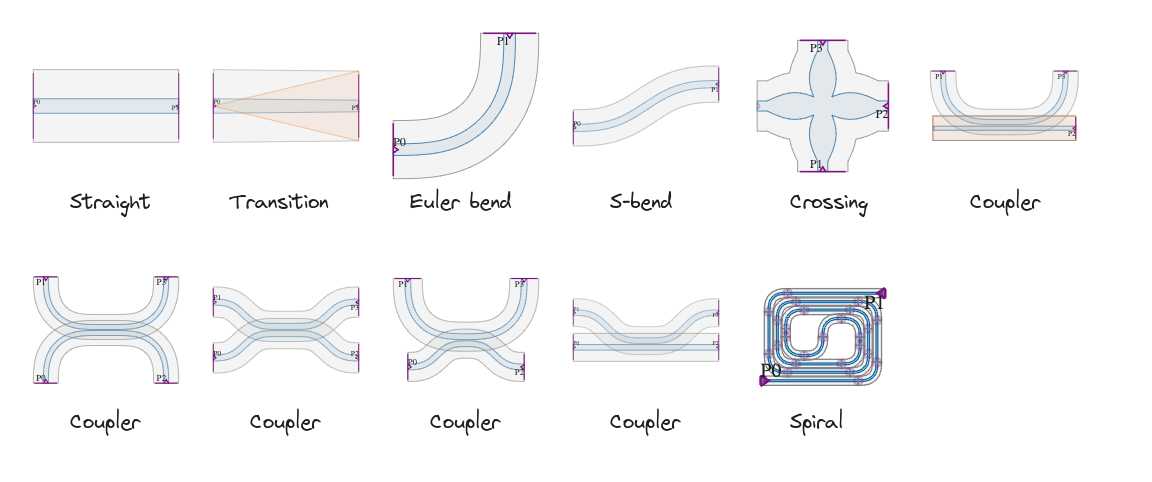
All devices within PhotonForge are represented by a Component.
Components contain all the geometrical and logical structures that are used to model and simulate the physical device.
Most fabrication processes require devices to be described by a 2D layout, usually stored as a GDSII or OASIS file.
PhotonForge components can also be described by 2D geometries to transparently integrate with layout files.
Components can also be hierarchically nested through Reference instances, which allows the re-use of sub-components to build larger and more complex systems.
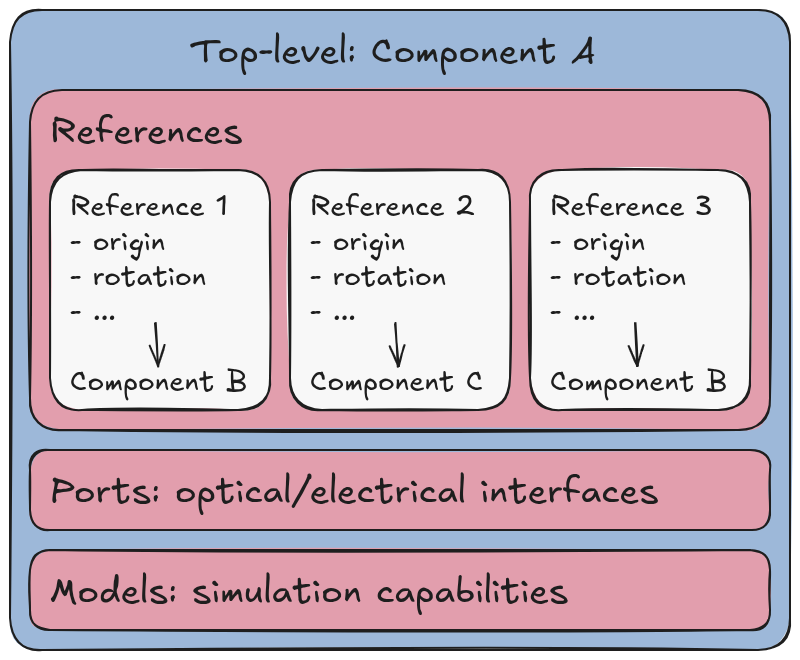
Component hierarchy showing nested references
Technology
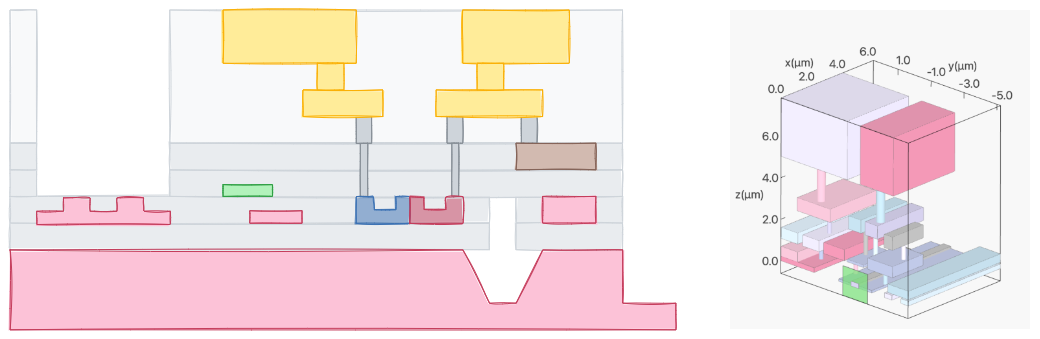
Full electromagnetic simulation of components requires a 3D representation of the device. Traditionally, the missing information required to render and accurately simulate the device in 3D from a 2D layout is derived from the intended fabrication process, through a PDK (process design kit).
In PhotonForge, the PDK information is stored in a Technology object, which can be created and customized by the user, or directly provided by the foundry that will execute the fabrication.
Ports
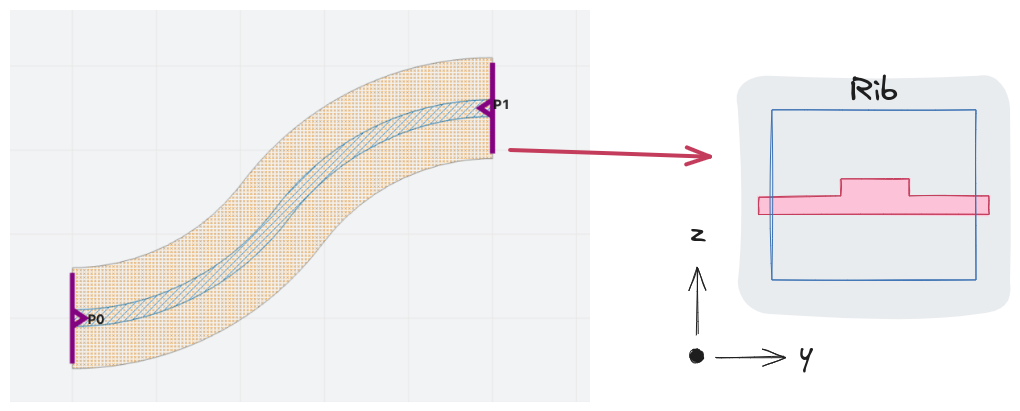
A component must somehow connect to other components or the external world.
That connection is created by adding Port objects to a component, which simply represents the terminating cross-section of a waveguide.
The set of ports of a component defines the shape of its scattering parameters (S parameters) response, which is used throughout PhotonForge to characterize the device.
Models
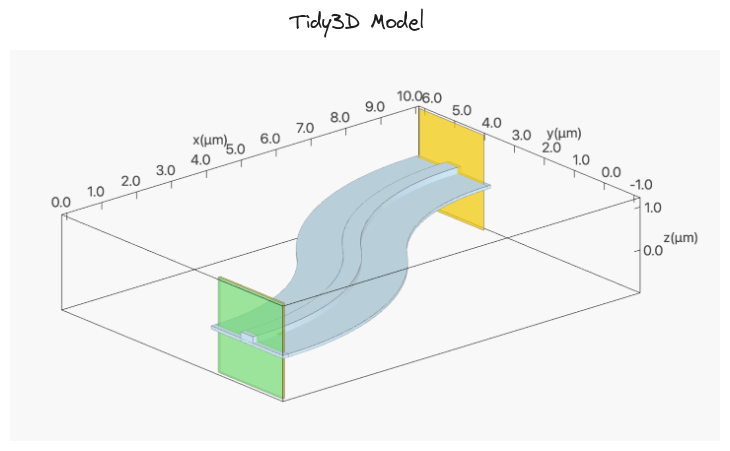
To bridge the layout description of the device to its S parameters, models are added to the component to perform that computation according to the component's internal structures and ports.
Models can be as simple as an ideal analytical model, or as complete as a Tidy3D FDTD simulation of the 3D component geometry, or anything in between, including circuit-type simulations that chain together the models from a component's sub-components.
First Run
Here is a complete example that creates an S bend, runs a 3D FDTD simulation, and plots the results:
import numpy as np
import photonforge as pf

# Set the default project technology
tech = pf.basic_technology()
pf.config.default_technology = tech

# Create an S bend from the parametric component library using the "Strip"
# waveguide profile defined in the Basic Technology
s_bend = pf.parametric.s_bend(
    port_spec="Strip",
    length=4,
    offset=1.5,
    model=pf.Tidy3DModel()
)

# Get the S parameters (uses the default Tidy3D Model)
wavelengths = np.linspace(1.5, 1.6, 11)
freqs = pf.C_0 / wavelengths
s_matrix = s_bend.s_matrix(freqs)

# We can easily plot the S parameters with the following utility
fig, ax = pf.plot_s_matrix(s_matrix)
The parametric.s_bend() function creates a parametric component with 2 ports and a default Tidy3DModel model.
If we look at the created s_bend component in a Jupyter notebook, we can see an SVG representation of the geometry and ports:
s_bend
Parametric S bend for a "Strip" waveguide.
When we calculate the S parameters, the model generates a Tidy3D simulation that is automatically run and provides the required scattering coefficients.
The plot_s_matrix() utility function quickly plots the S parameters:
fig, ax = pf.plot_s_matrix(s_matrix)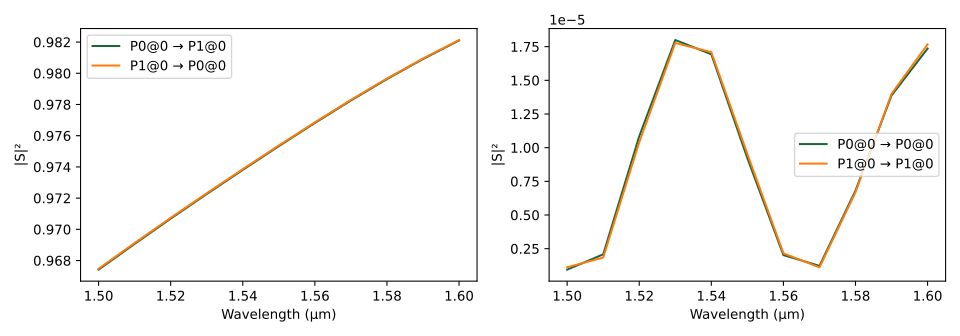
S parameters for the parametric S bend.
Note: The S parameters are cached by Tidy3DModel, so the FDTD simulation can be skipped in future runs as long as there are no changes to it.
What's next?
Explore full Examples to see the full capabilities of PhotonForge, dive deeper into specific topics in the Short Guides section, or explore the Python API Reference for the full module documentation.


 TERMS & CONDITIONS


 How the process works:
 Try this real URL to see an example: